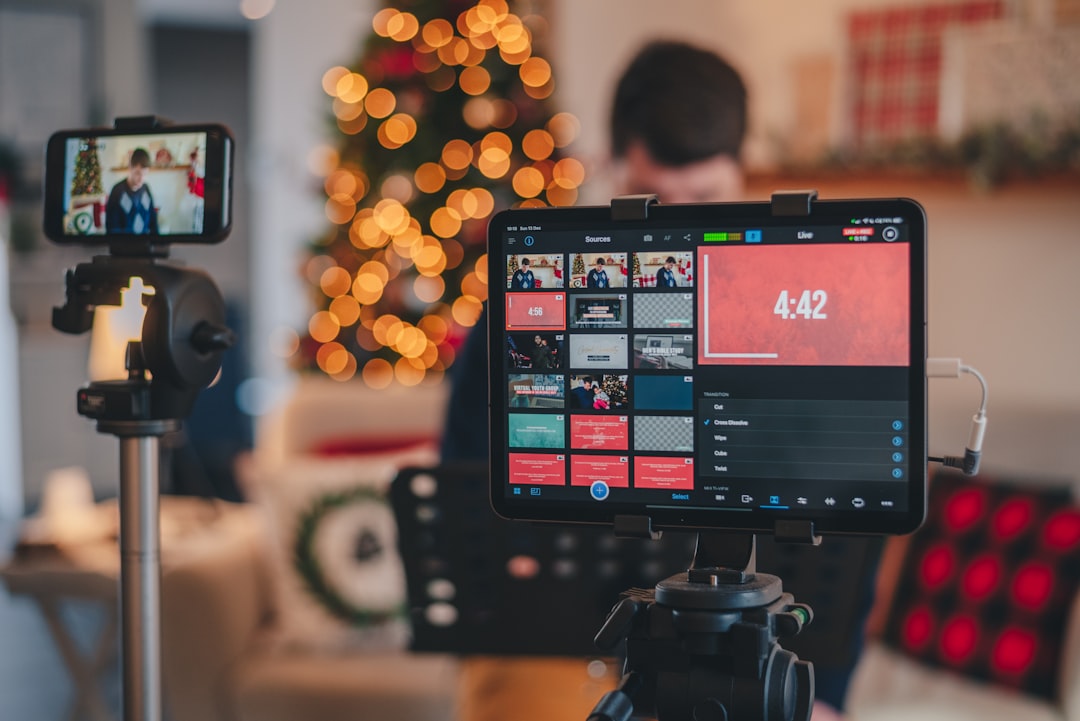
Finding an official concert livestream is only the first step. This practical guide helps you confirm where to watch, convert the start time to your region, understand replay access, check device and caption options, and save legitimate links before the performance begins.
Overview
Concert livestreams can appear across several kinds of official channels: an artist’s website or social account, a promoter or venue page, a broadcaster, a ticketed streaming platform, or a festival’s dedicated event hub. The listing may announce the same performance in local time, venue time, or a time zone selected by the platform. Some events are free, some require registration, and others use a one-time purchase or an account connected to a ticket.
Because event details can change, treat a search result, repost, or fan-made schedule as a starting point rather than final confirmation. The safest route is to begin with a verified artist, venue, promoter, festival, broadcaster, or platform page and follow the event’s own viewing instructions.
Before you commit to watching, record five details:
- Official source: The page or account responsible for presenting the event.
- Start time: The advertised time and the time zone attached to it.
- Access method: Free viewing, registration, subscription, ticket, or purchase.
- Replay terms: Whether a recording is expected, where it will appear, and how long access may last.
- Technical requirements: Supported devices, apps, browsers, connection needs, captions, and regional limits.
For broader event verification, see our guide to verifying concert listings, tour dates, and ticket links. The same habit applies to virtual events: confirm the details at the source before relying on a third-party listing.
Checklist by scenario
When the artist or venue announces a free stream
- Open the artist’s official website or verified channel rather than a reposted link.
- Look for an event page, scheduled video, or pinned announcement that names the date and start time.
- Check whether “start time” means the preshow, opening act, countdown, or main performance.
- Confirm whether an account, email registration, app, or age restriction is required.
- Save the official page and set a reminder through the platform if available.
Free access does not necessarily mean unlimited replay access. Note whether the announcement promises a replay or only describes a live broadcast.
When a broadcaster or festival hosts the stream
- Use the broadcaster’s event page or the festival’s official streaming hub.
- Read the regional availability language carefully. A broadcast may be limited by country or territory.
- Check the running order if the festival has multiple stages or simultaneous performances.
- Identify whether the page uses a web player, a television app, or a separate streaming service.
- Look for captions, audio-language options, stream quality controls, and accessibility information before the event begins.
Festival schedules can be especially fluid. Save the page that contains the current schedule rather than relying only on a screenshot, since set times and stage assignments may be adjusted.
When the livestream is ticketed or pay-per-view
- Confirm the seller or platform from the artist, promoter, venue, or festival’s official page.
- Read the purchase terms before paying, including the viewing window, replay rules, cancellation language, and account requirements.
- Check whether access is tied to one account, one device, a specific app, or a particular region.
- Complete account creation and any device authorization before show day.
- Keep the confirmation email, order number, and official viewing link in one accessible place.
Do not assume that buying access guarantees an indefinite recording. The replay period may be stated in the event terms, may begin after the live broadcast, or may not be offered at all.
When you are looking for a replay
- Return to the original event page rather than searching for unofficial uploads first.
- Check the artist, promoter, broadcaster, and platform channels for a replay announcement.
- Confirm whether the replay is the complete concert, an edited version, selected songs, or a delayed broadcast.
- Note the exact closing date and time if a replay window is listed.
- Save the legitimate replay link and any access instructions while they are available.
If the performance becomes part of a longer archive, you may also want to compare it with the official live sessions and performance archives by artist guide.
What to double-check
Time zones and calendar dates
Never convert a concert livestream time by memory alone. First identify the source time zone, then convert it to your location using a reliable calendar, operating-system clock, or time-zone converter. Check the calendar date after conversion: an evening performance in one region may begin early the next morning elsewhere.
Write the result in a format that removes ambiguity, such as “Saturday, 9:00 p.m. Eastern; Sunday, 2:00 a.m. in London.” If daylight-saving changes occur near the event date, recheck the conversion rather than assuming a fixed offset.
Replay availability and regional access
Look for precise wording such as “available after the broadcast,” “on demand,” “through [date],” or “live viewing only.” If the page is vague, do not treat a replay as guaranteed. Regional restrictions can apply to the live broadcast, the replay, or both, so verify access from the country where you intend to watch.
Devices, browsers, and captions
Check whether the stream works in a browser, television app, mobile app, or casting setup. If the event matters to you, test the intended device beforehand. Confirm that captions are available on the specific player, since captions may vary between a live stream and its replay. Fans planning around venue or viewing accessibility can also consult this concert accessibility planning guide.
Link legitimacy
Inspect the web address before signing in or paying. A legitimate page should be connected from an official artist, venue, promoter, broadcaster, festival, or recognized streaming platform. Be cautious with urgent payment requests, shortened links with no context, copied event graphics, and pages that promise a replay without identifying the rights holder.
Common mistakes
- Using the first search result as proof: Search rankings can surface old event pages, unofficial streams, or outdated schedules.
- Ignoring the time zone: A date and clock time without a named zone are incomplete event details.
- Assuming the stream starts with the headline act: A countdown, preshow, support act, or festival segment may come first.
- Waiting until show time to create an account: Registration, password recovery, app installation, or device authorization can take longer than expected.
- Confusing a clip with a replay: A short highlight, music video, or concert recap is not the same as a full-performance archive.
- Saving only a screenshot: A screenshot preserves the information but not the working link or later updates.
- Assuming a purchase is refundable or permanent: Read the event’s terms before completing checkout and retain the confirmation.
If you discover a performance through a short clip and need help identifying it before looking for the official version, use our guide to identifying a song, artist, or concert from a live clip.
When to revisit
Recheck the event page at three useful points: when you first hear about the concert, during the week before the broadcast, and again on the day of the event. This catches changes to start times, regional availability, platform instructions, captions, and replay terms. For ticketed events, revisit the purchase page before checkout and keep the final terms with your confirmation.
Use this quick pre-show routine:
- Open the official event page.
- Confirm the date, source time zone, and your converted local time.
- Verify the viewing link, account status, device, and internet setup.
- Check caption and accessibility options.
- Record the replay deadline, or note that no replay has been confirmed.
- Save the official link and set a reminder with enough time for sign-in.
After watching, record the setlist, standout moments, and replay details in a personal archive. Our concert memory archive template can help preserve those notes alongside the official link. Policies and platforms change, so return to this checklist before each major livestream, virtual festival, international broadcast, or replay purchase rather than relying on an old event page.